For the complete documentation index, see llms.txt. Markdown versions of all docs pages are available by appending .md to any docs URL.
Multiple LLM providers
Verified : Code examples on this page have been automatically tested and verified.Define reusable LLM provider configurations once and reference them across multiple model definitions to avoid duplicating connection and authentication parameters.
Reusable provider configuration
Reuse provider configuration to avoid duplicating connection and authentication parameters across multiple model definitions. Define named provider defaults once in llm.providers[] and reference them from multiple llm.models[] entries with provider.reference. You can set up the shared provider in the UI or in your configuration file.
Tip
Compare provider prefixes, exact names, wildcards, and custom names in Choose how to expose models.
To create the shared provider and the two models in the UI, follow these steps. The steps create the same configuration as the Config file tab.
Set your API key in the
OPENAI_API_KEYenvironment variable. The UI checks that the variable exists when you save.export OPENAI_API_KEY='<your-api-key>'Create a configuration file with an empty
llmsection, and start agentgateway in the same terminal. Without anllmsection, the UI does not show the LLM > Models page.cat > config.yaml <<'EOF' # yaml-language-server: $schema=https://agentgateway.dev/schema/config llm: models: [] EOF agentgateway -f config.yamlCreate the shared provider.
Open LLM > Providers, such as http://localhost:15000/ui/llm/providers, and click Add provider.
Enter
openai-prodfor the Provider name.Keep OpenAI as the Provider.
For the Provider API key, select Env var, and enter
OPENAI_API_KEY.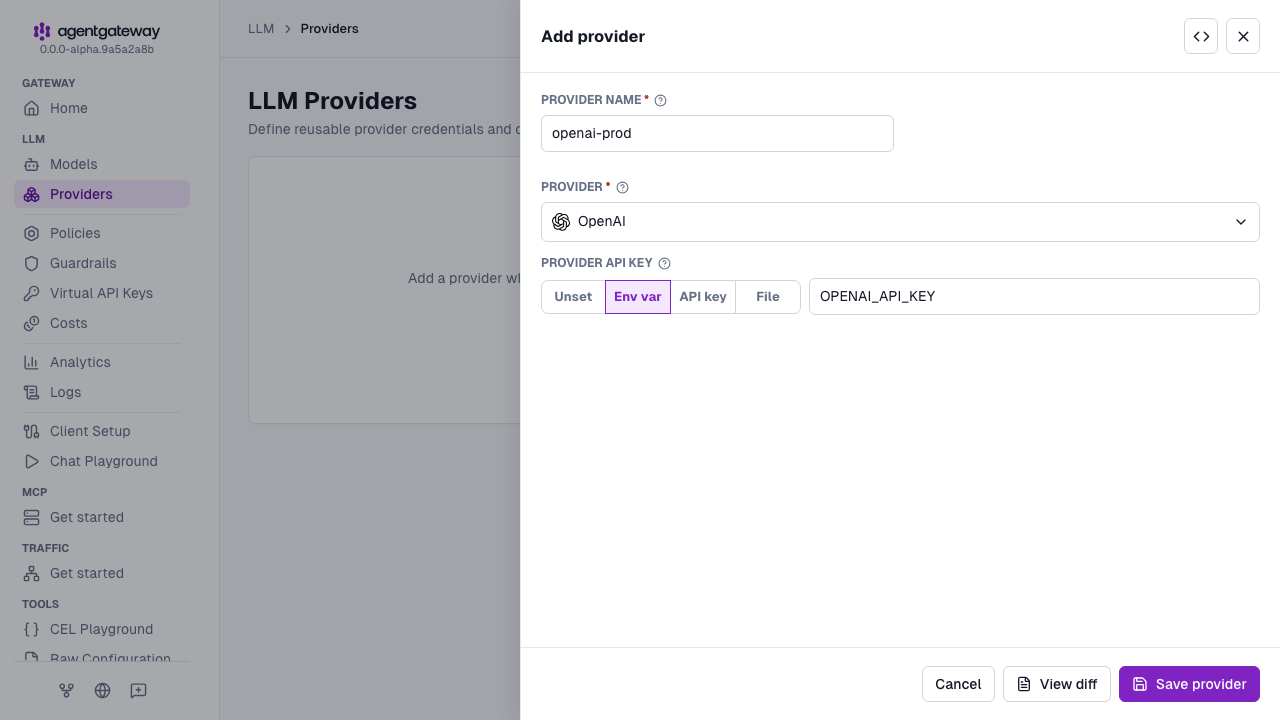
Click Save provider.
Create the
fastmodel.- Open LLM > Models, and click Add model.
- From the Provider dropdown, select openai-prod, which is marked configured.
- In the Incoming model match field, replace the default
openai-prod/*withfast. - For the Outgoing model, select Explicit, and enter
gpt-4o-mini. - Click Save model.
Repeat the previous step for the
smartmodel, with the outgoing modelgpt-4o.
The Used by column on the LLM > Providers page lists the models that reference each provider. The UI writes the provider as openai instead of openAI. Agentgateway accepts both values.
Whether the UI can save depends on your storage mode. For more information, see Save changes from the UI.
In this example, smart inherits the upstream API key from llm.providers[] and only changes the model name.
Named providers can hold shared upstream settings you want to reuse, such as authentication, host overrides, path overrides, or other model defaults.
Keep the shared values on llm.providers[] and only set per-model differences on llm.models[].